
 Apple App Store · Live
Monitor App Store reviews with the App Store Connect API
14-day free trial · cancel anytime
What Review Expert imports from the App Store
Set up your App Store Connect API key
- 1
Open the App Store Connect API page
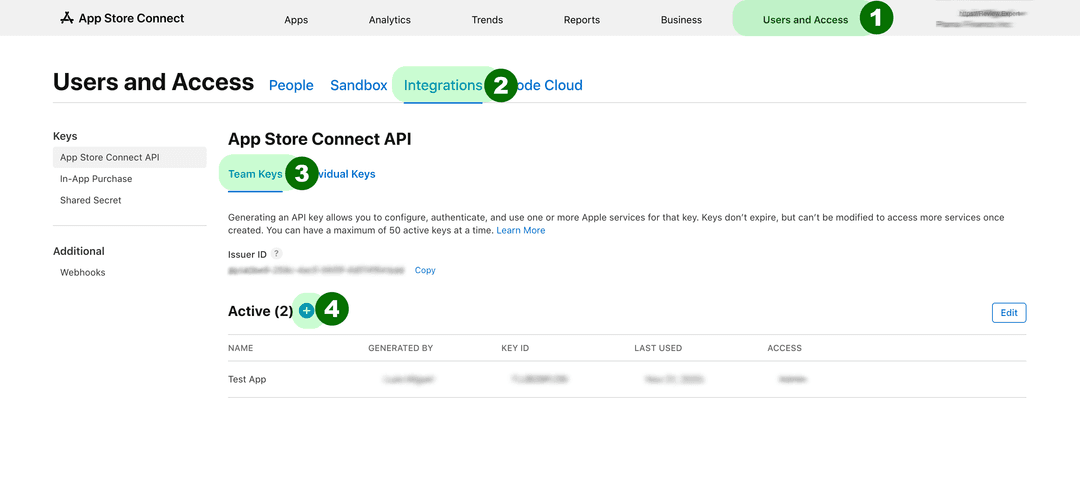
Sign in to App Store Connect, go to Users and Access, open the Integrations tab and select App Store Connect API (Team Keys). You need the Account Holder or Admin role to create keys. - 2
Generate a key that can access customer reviews
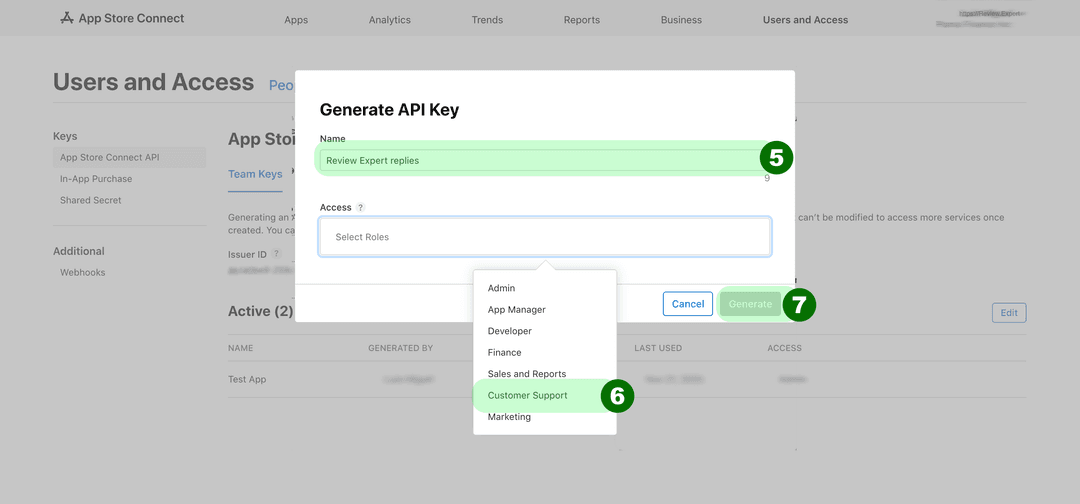
Click Generate API Key (or the + button), name it something like “Review Expert” and choose an access level that can read customer reviews and manage responses. Our in-app guide uses Customer Support. - 3
Note the Issuer ID and Key ID, download the .p8 once
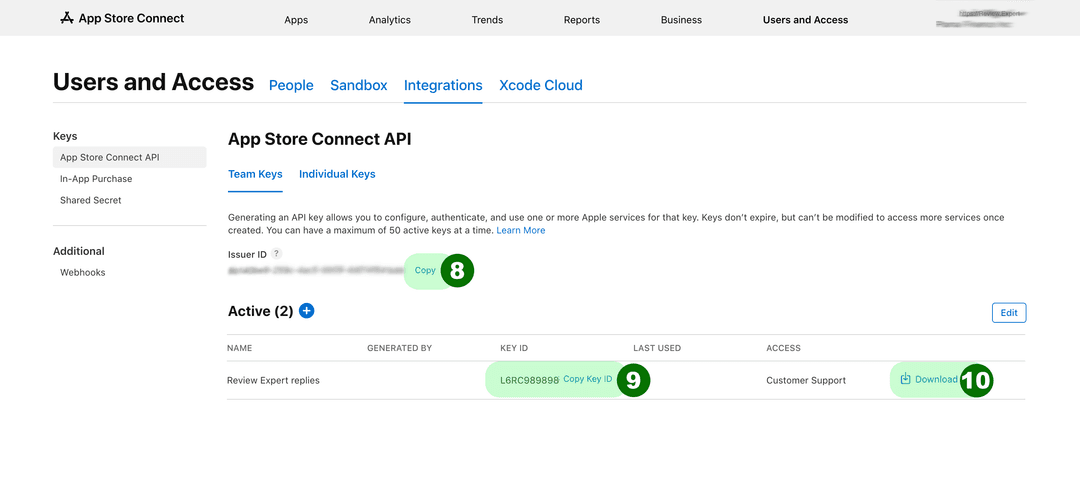
Copy the Issuer ID shown above the keys list and the new key's Key ID. Download the private key (.p8file). Apple only lets you download it once, so store it safely. - 4
Add the app in Review Expert
In the Review Expert dashboard, open Apps & Businesses, add your app, paste the Issuer ID and Key ID, and upload the.p8file. The first full history sync starts after the connection is verified.
How sync works
When you add an app, Review Expert starts a full history sync: it pages through the customer reviews the App Store Connect API returns for that app, across every territory, and stores the rating, title, text, reviewer nickname, date, territory and any existing developer response. Large apps take longer for this first pass than small ones.
After that, an incremental sync runs roughly every 5 minutes to pick up new reviews. Sync runs as background workflows, and when Apple's API asks clients to slow down (rate limiting), the sync waits and tries again.
Keep in mind that Apple decides when a review becomes available through its API. A review you can see on the store may take a while to show up in the API, and therefore in Review Expert.
Replying to App Store reviews
Open a review in Review Expert, write your response and send it. The response is posted to the App Store through the App Store Connect API, exactly like responding in App Store Connect. If a review already has a response, you can update it the same way. Every team role (owner, admin and reviewer) can reply.
What Apple does with your response
- Apple notifies the customer that you responded, and they may update their review or rating. A clear fix or workaround is often what turns a 1-star review around.
- Responses can be long, about 6,000 characters (5,970 per Apple's API documentation), but short, specific replies read better. Be cautious about pasting long templates.
- Apple reviews responses before they appear publicly, so there may be a delay. Follow Apple's ratings and reviews guidance.
For phrasing ideas, see how to respond to App Store reviews and our response templates.
Routing App Store reviews to your team
Monitoring App Store reviews is only useful if the right people see the right reviews. In the Review Expert dashboard, open Automation, choose Manage destinations (or Add destination), click Connect next to the tool and approve access. Each destination has its own filters:
- Minimum and maximum rating, for example only 1–2 star reviews to a support channel.
- Keywords, for example “crash”, “login” or “subscription” to Linear for the mobile team.
Slack and Linear are on every plan; Microsoft Teams and Zendesk on Pro and above; webhooks on Enterprise. See sending App Store reviews to Slack for a walkthrough.
Apple's full API reference is in the App Store Connect API documentation.